
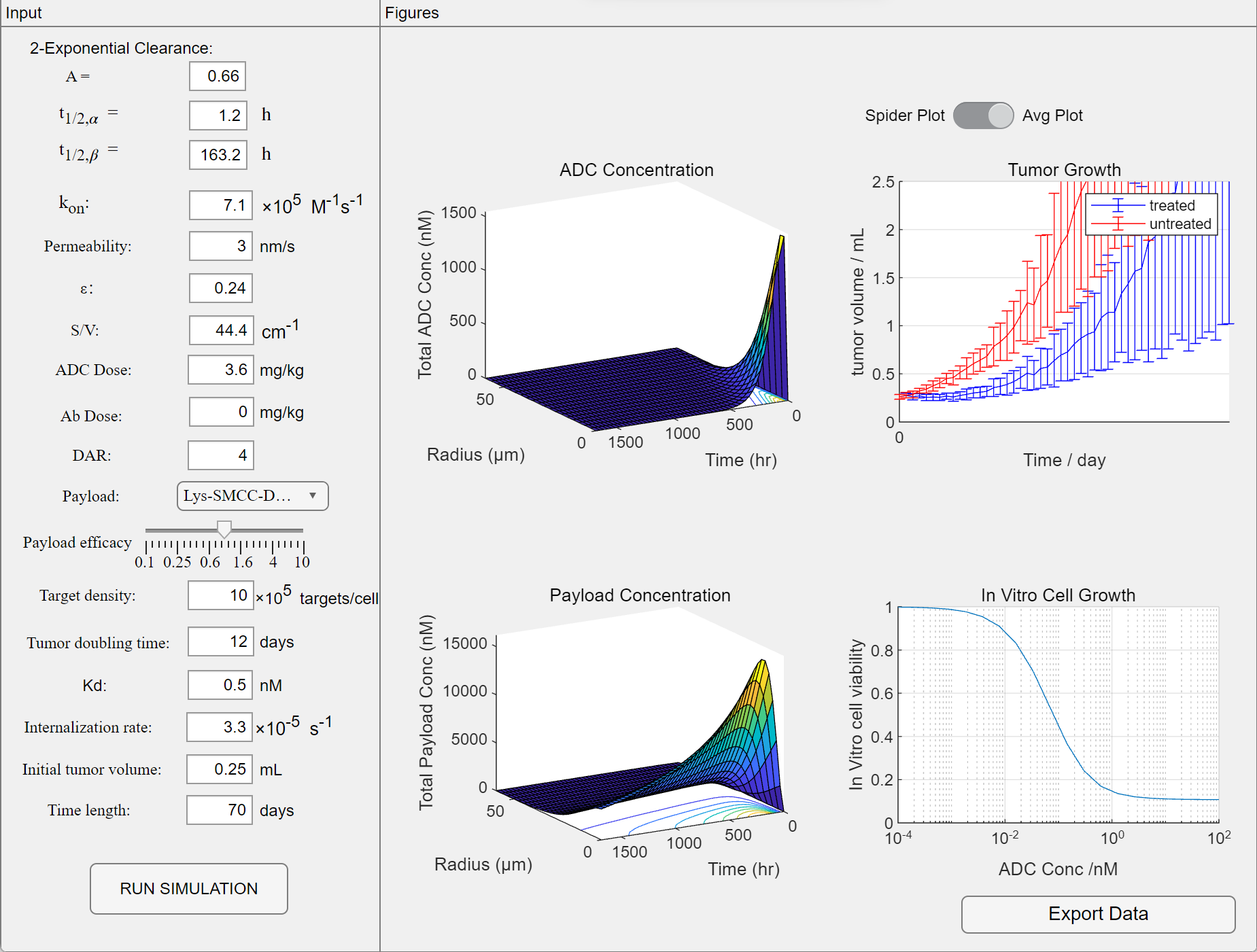
A graphical user interface for antibody-drug conjugate simulations. For this model, users with MATLAB installed are able to run the executable file directly. Otherwise, the MATLAB Runtime for R2023a is needed, which can be downloaded and installed from this link on the MathWorks website.

from: Cilliers, C., H. Guo, J. Liao, N. Christodolu, and G. M. Thurber. Multiscale Modeling of Antibody-Drug Conjugates: Connecting Tissue and Cellular Distribution to Whole Animal Pharmacokinetics and Potential Implications for Efficacy. AAPS Journal. 2016; 18(5): 1117-30.
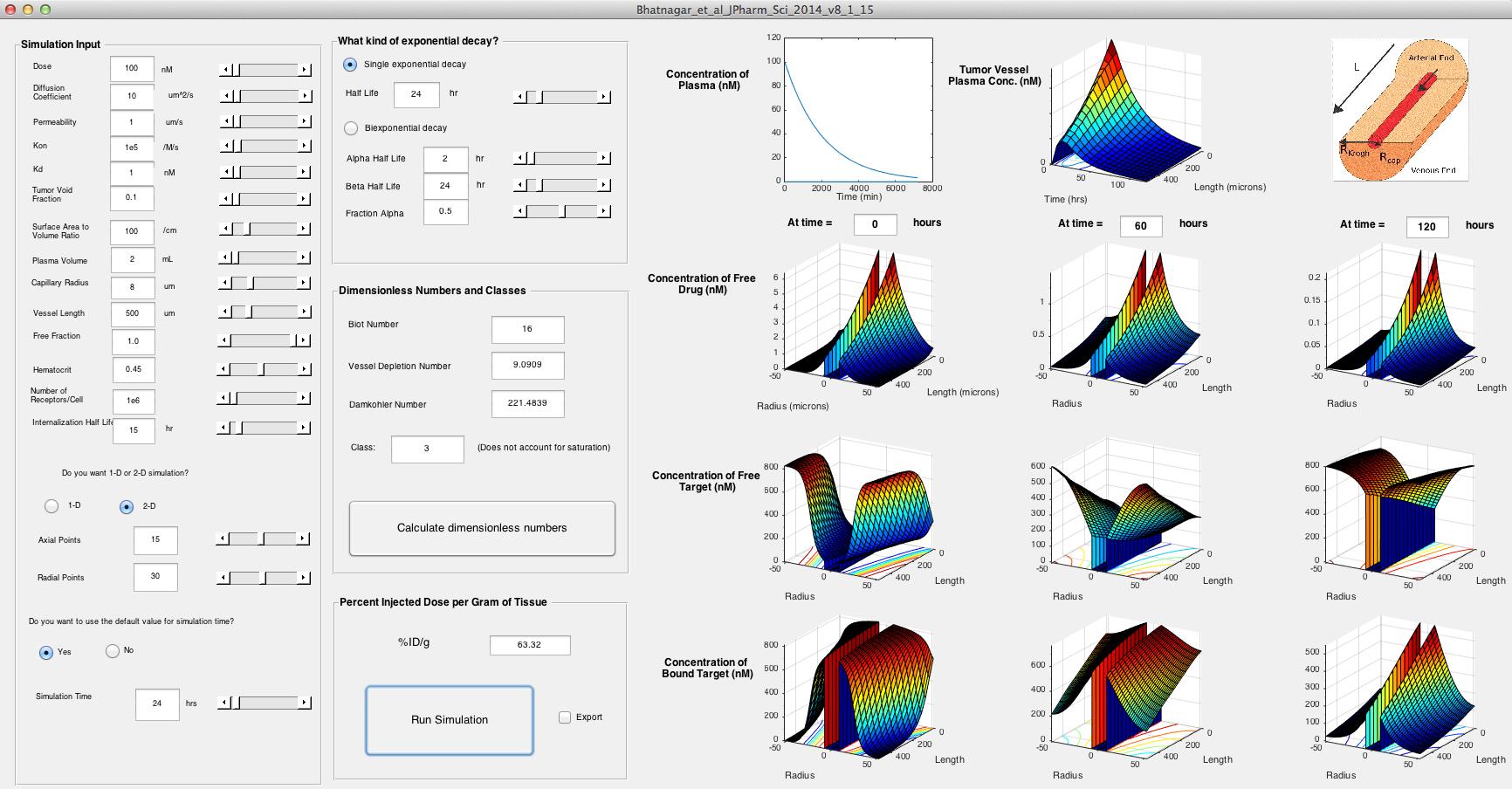
from: Bhatnagar, S., E. Deschenes, J. Liao, C. Cilliers, and G.M. Thurber. Multichannel imaging to quantify four classes of pharmacokinetic distribution in tumors. J Pharm Sci. 2014; 103(10): 3276-86.
SimADC Download Guide
Please follow the instructions to download a GUI version of our cancer model, SimADC, as described in the publication listed below. Running this model requires the use of VirtualBox and the file download size is about 14 GB. Please refer to the supplementary information in the paper on how to run the model.
Agent-based modeling demonstrates how target-independent processes supplement killing by antibody-drug conjugates in cancer therapy. Melissa C. Calopiz, Jennifer J. Linderman, Greg M. Thurber. bioRxiv 2025.12.26.696346; doi: https://doi.org/10.64898/2025.12.26.696346. [preprint]
Installing VirtualBox
- Open the VirtualBox website. Go to https://www.virtualbox.org in your computer’s Internet browser. This is the website from which you’ll download the VirtualBox setup file.
- Click Download VirtualBox. It’s a blue button in the middle of the page. Doing so will open the downloads page
- Click [Linux hosts]. You’ll see this link below the “VirtualBox 7.x.x platform packages” heading. The VirtualBox RPM/DEB file will begin downloading onto your computer.
- Open the VirtualBox RPM/DEB file. Go to the location to which the RPM/DEB file downloaded and double-click the file. Doing so will open the VirtualBox installation window.
- Navigate through the installation prompts. Do the following:
- Click Next on the first three pages.
- • Click Yes when prompted.
- • Click Install.
- • Click Yes when prompted.
- Click [Install] when prompted. Doing so will allow VirtualBox to begin installing on your computer.
- Click [Finish] when prompted. It’s in the lower-right side of the window. Doing so will close the installation window and open VirtualBox.
- Download the Simulator Virtualbox Appliance.
- From Virtualbox, type CTRL-I and select the downloaded Simulator Virtualbox Appliance to import into Virtualbox.
- When prompted, check the box to reinitialize the MAC address of all network cards.
- Click [Import].
Running the Model in a Virtualbox Appliance
- Start Virtualbox
- Start the SimADC virtual machine.
- Logon as Guest. No password is required.
- Open a terminal window, Applications | Accessories | Terminal
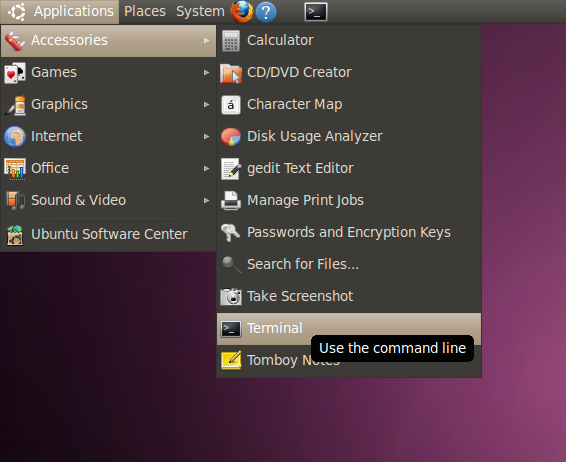
– OR –
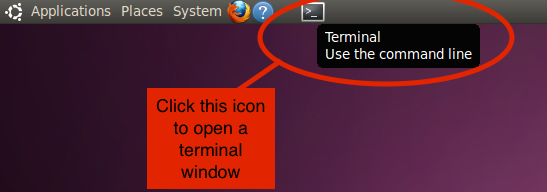
This will display the contents of file README.txt.
To run the model, in the terminal window do the following:
- To run the model with default options and a default parameter file, type: ‘./run-model‘ and hit return.
- The program initialization takes about 10 seconds and will print some initial status information.
- Once initialization is complete, a user interface window will open, along with a window showing the simulation environment. When you’ve selected the desired simulation settings in the user interface window, click ‘Start Simulation’ in the bottom left to start the simulation.
- To exit the program type the letter ‘q’ in either the main window or the graphics window.
- Type ‘./model -h’ for the model command line options.
- o run with a different parameter file or different options, type: ./model -i NameOfParameterFileToUse.xml MORE_OPTIONS and hit return, where MORE_OPTIONS is replaced with any additional command line options.
*Please send requests for any other code to Dr. Greg Thurber, gthurber AT umich.edu